
Using search fields
When you select a branch in the Estimate Catalog pane of the Estimates window or you select Companies or People from the Address Book catalog pane, the detail pane displays a grid with all estimates or contacts in the selected branch or list. The list can be extensive so the Estimating Management Console provides you with multiple features for filtering or limiting the number of estimates or contacts displayed in the grid.
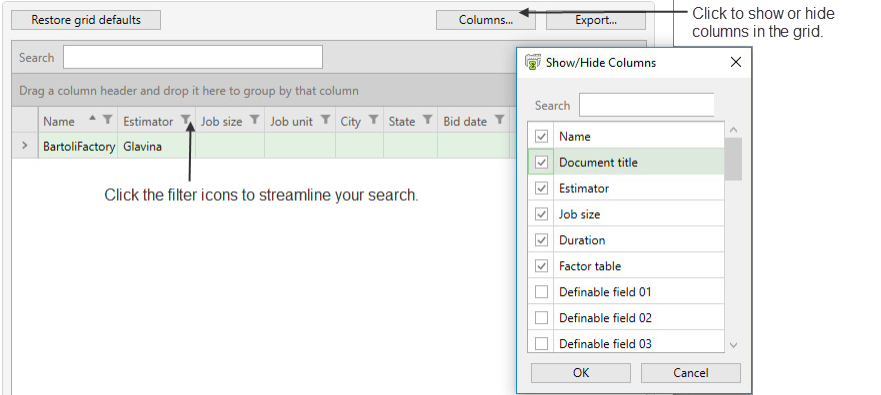
Items in this pane
| Item | Description | ||||||||
|---|---|---|---|---|---|---|---|---|---|
| Grid |
Displays a list of available estimates or contacts in the selected branch of the Estimate Catalog pane or Companies or People in the Companies/Contracts pane. |
||||||||
| Group-by Area |
Groups all entries in the grid according to a specified grid field. Drag any field from the grid column heading to the group by area box and release to specify a field. For example, if you want to group estimates in the grid according to job size, grab the Job size column heading and drag it to the group by area box. |
||||||||
| Field Chooser |
Select the checkboxes of the fields (columns) you want the grid to display. Clear the checkbox of any field you do not want to appear in the grid. |
||||||||
| Search Filters |
Use these boxes to define a filter for limiting the display of entries in the grid. For example, if you want to display only contacts with a business phone area code of 503, select Business Phone from the Field box, select Contains from the Comparison box, and type 503 in the value box. The search filter boxes perform the following functions:
Note: The corresponding grid field (column) displays the filter criteria you set. For example, if you set the filter to display only companies located in Oregon, the Location column displays = Oregon (in the grid filter row). |
||||||||
| [Export] |
Click to save a copy of the grid as a Microsoft Excel workbook. |
||||||||
| [Show Form] |
Select any estimate in the grid and click to display the associated estimate accessibility settings or Address Book contact settings. |
||||||||
| [Default Grid] |
Click to revert the grid setup back to its default display settings. |