
Estimates grid
The Estimates grid appears in the Manage Estimates window in Estimating and in the Estimates pane in the Estimating Management Console when you select a branch, such as All Estimates in the Estimate Catalog. All estimates associated with that branch appear in the grid.
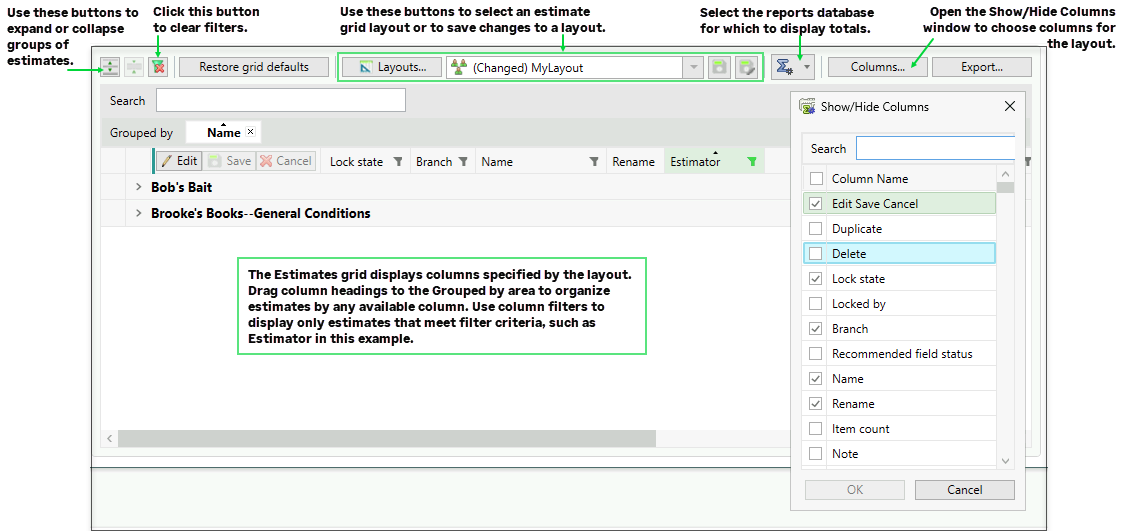
Depending on your permissions and the columns shown in the grid, you can also check out estimates, edit supported estimate information, save or cancel changes, rename estimates, and delete estimates directly from the grid.
You can also:
-
Export the contents of this grid to an Excel file.
-
Customize the grid by showing or hiding columns.
Note: You cannot hide columns that are sorted or filtered.
-
Filter the display to show only estimates that match selected criteria.
-
Display branch-level columns and use them to view, sort, filter, or group estimates by individual estimate-tree levels.
-
Search for estimates by name.
-
Sort, group, and search-highlight address book-related columns by the displayed names.
-
Use extended selection and spreadsheet-like right-click behavior when working with grid cells.
Items in this window
 Rename
 /
/


 /
/ 
| Field | Notes |
|---|---|
| <columns> (various) |
The columns that you choose to show (using the Show/Hide Columns window) appear in the Estimates grid. You can use buttons in the column headers to filter and sort the grid in ascending or descending order. You can change editable columns when the estimate is checked out. (Some columns, including Factor table, Labor rate table, Equipment rate table, Crew price method, Reporting hours, Estimator, Project Type, and some user-defined job class fields, are not editable in the grid.) |
 Lock State Lock State |
A pencil icon in this column indicates whether an estimate is locked exclusively for a user who is editing it. |
| Search |
Type keywords in the Search box to display only estimates with names that match the search term. Matching text is highlighted in supported columns, including address book-related columns. |